Fix an OBS stream fast.
Use this checklist when a compatible hardware or software encoder is not reaching yastream.com, the browser viewer is blank, audio is missing, or latency is higher than expected.
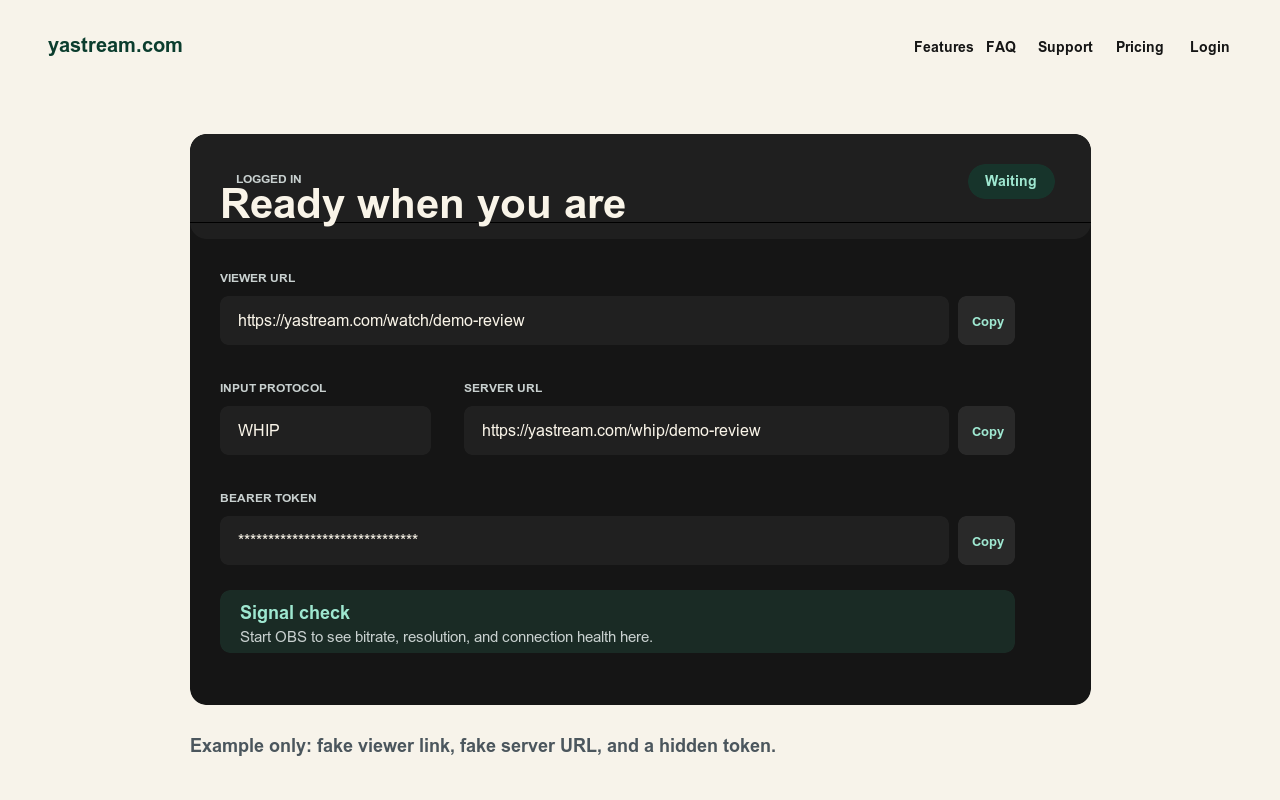
First checks.
Most setup failures are one of these before they are a deeper network or browser problem.
- Use the right link OBS needs ingest details. Viewers need the browser viewer URL. Do not paste a viewer URL into OBS.
- Copy credentials exactly WHIP uses a URL plus bearer/auth token. SRT uses the SRT details and Stream ID. RTMPS and RTMP use a server URL plus stream key.
- Start the publisher OBS or the encoder must be actively streaming before yastream can show a healthy signal.
- Stay inside limits Keep resolution, bitrate, session length, and viewer count within the selected plan and upload connection.
No signal in yastream.
If yastream does not show an incoming stream, troubleshoot the publishing path first.
- WHIP Use the yastream WHIP URL and bearer/auth token exactly. A missing or old token can prevent publishing.
- SRT Use the SRT details exactly as shown. Check host, port, mode, and Stream ID.
- RTMPS or RTMP In OBS, choose Custom, paste the server URL, and paste the stream key in the key field.
- Network path Try another network if the encoder cannot connect. Corporate firewalls can block publishing protocols.
Viewer is blank.
A blank viewer often means the publisher is not healthy yet, the viewer link is wrong, or the browser path is blocked.
- Check publisher health first Confirm yastream sees the stream before debugging viewer playback.
- Use the current viewer URL Signed viewer links can expire or be specific to the stream. Copy a fresh viewer URL from yastream.
- Check password If a stream password is enabled, send it separately and verify it was typed correctly.
- Try another browser Test a current Chrome, Edge, Safari, or Firefox browser, ideally on another device or network.
No audio.
Audio troubleshooting needs both the source and browser playback path.
- Check OBS meters Confirm the intended audio source is active, not muted, and included in the active scene.
- Check browser mute Make sure the viewer tab, system output, and audio device are not muted.
- Use Opus for WHIP/WHEP Opus is the recommended audio path for WHIP/WHEP browser playback.
- Know the AAC caveat AAC may work in RTMP or SRT workflows, but WHEP browser audio may require Opus from the source.
Latency is high or playback buffers.
Reduce encoder delay and leave network headroom before assuming the viewer is the problem.
- Use stable encoder settings Start with H.264/x264, CBR, B-frames 0, and a 1 second keyframe interval.
- Lower load Reduce bitrate, resolution, or frame rate if upload bandwidth, CPU, or GPU load is tight.
- Choose the right protocol Use SRT by default. WHIP is optional for encoders that support it. Use RTMPS or RTMP for legacy compatibility.
- Use safe latency wording Down to 0.5 seconds can be possible under ideal conditions, and around 1 second is the normal target. Do not treat 0.5 seconds as guaranteed.
Security checklist.
Never solve a support problem by making private publishing details public.
Related setup sources.
Use these canonical yastream sources for detailed setup and machine-readable facts.
- Full setup guideHow to use yastream.com
- Protocol choiceWHIP vs SRT vs RTMP
- OBS settingsOBS low-latency settings
- OBS workflowOBS to browser streaming
- Viewer guideBrowser viewer guide
- Support guideOBS setup and troubleshooting
- LLM referenceFull LLM-readable yastream reference